Greenhouse setup
Last updated: June 28, 2026
Hotfix helps candidates find current tech roles and act when a relevant job opens. Connecting Greenhouse keeps your published jobs in sync and lets eligible roles accept applications directly on Hotfix.
Completed applications arrive in Greenhouse Recruiting with the candidate’s resume, screening answers, and Hotfix source attribution attached.
Set up the Hotfix integration
Locate your Job Board Token
To make your open jobs available to Hotfix, you’ll need to send your job board token.
You can find your Job Board Token by navigating to the Job Board settings: Configure > Job Boards > click the ellipsis next to your job board > Edit Board Settings. Scroll to the URL field.
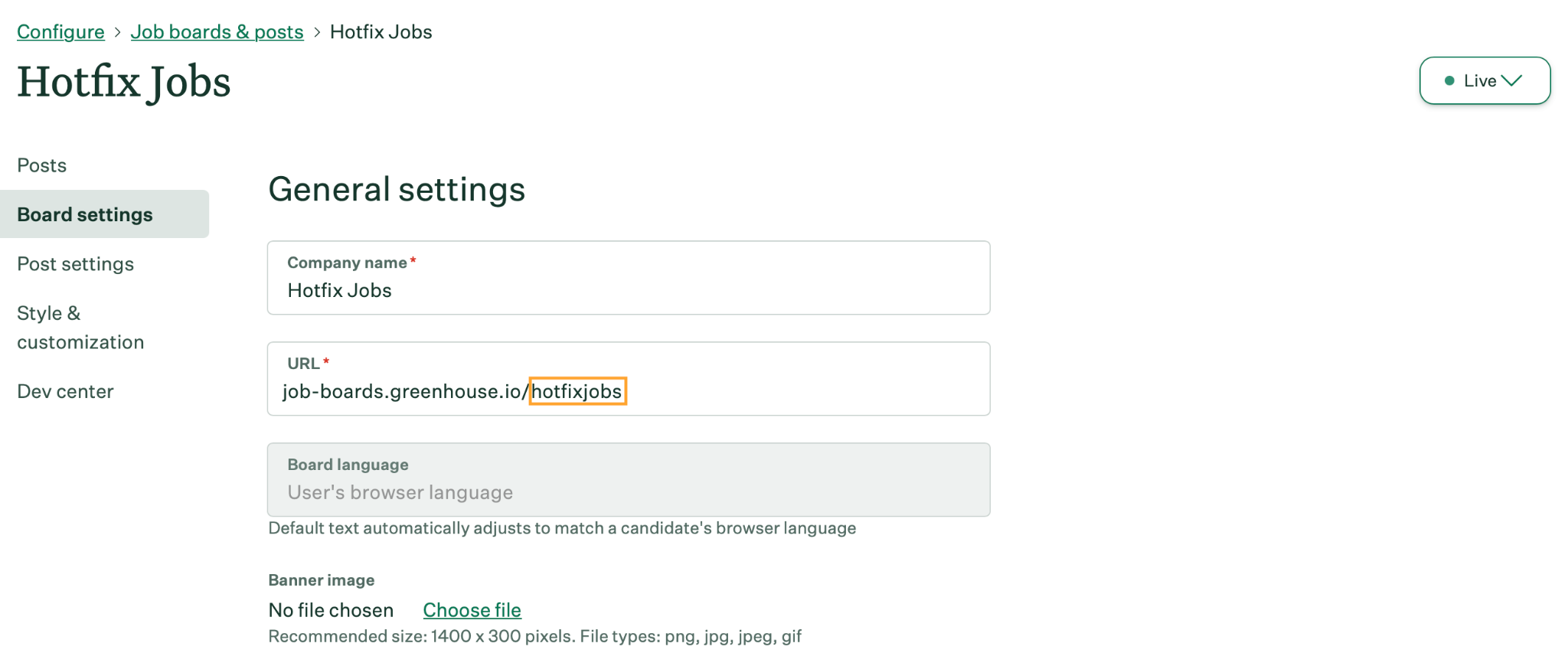
More detail in Greenhouse’s docs.
Generate a Job Board API key
Next, you’ll need to create a Job Board API key for Hotfix.
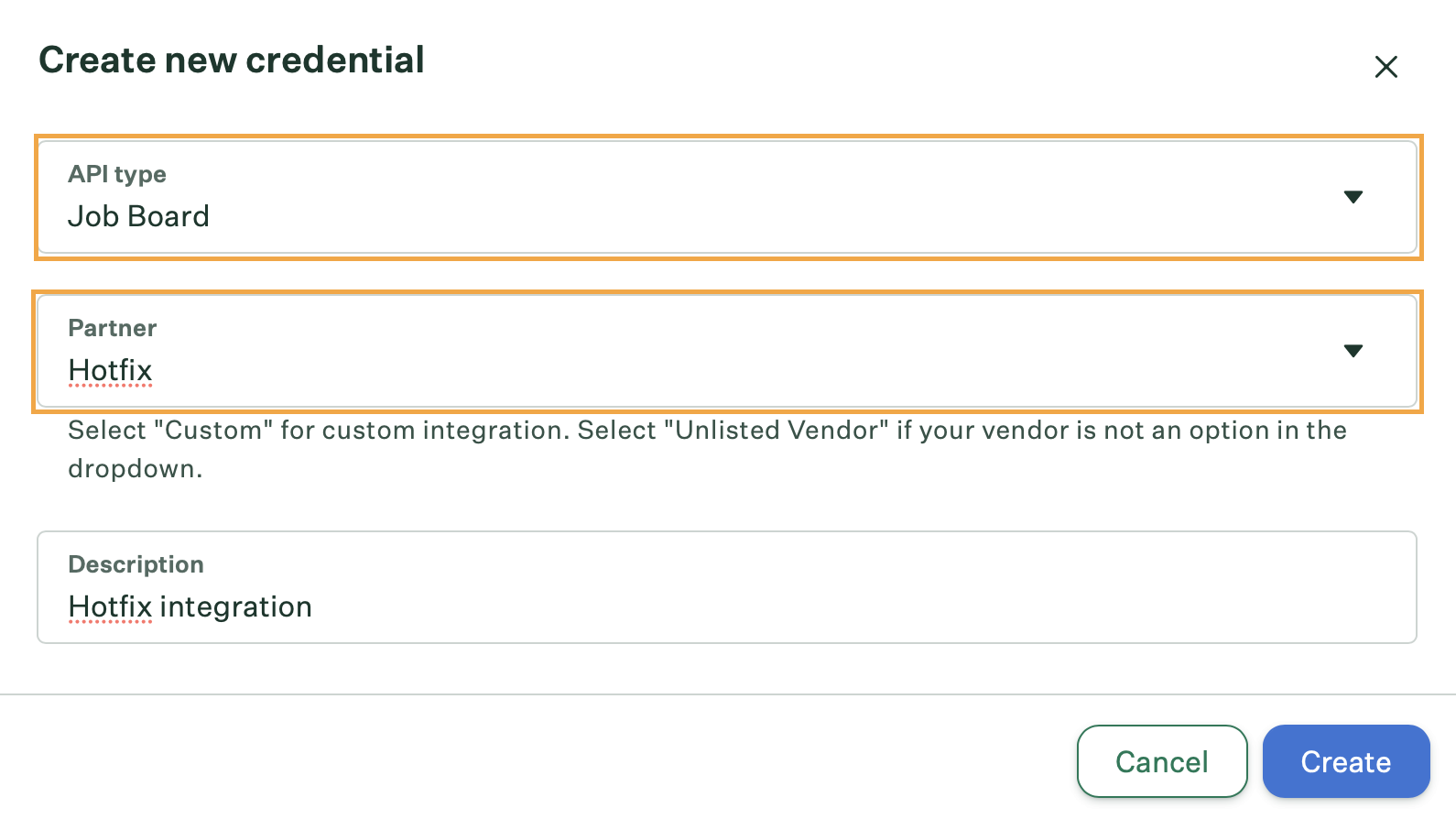
Follow Greenhouse’s Job Board API key guide and use the information below when creating your API key:
- API Type: Job Board
- Partner: Hotfix
- Description: Hotfix job board API key
Copy the key when it appears. Greenhouse shows it only once.
Create a custom source and tracking link
Next, in order to use the Hotfix integration, you’ll need to create a custom source in Greenhouse Recruiting.
To create a custom source, click the Configure icon on your navigation bar, then click Custom Options on the left. Click Sources.
Click Create New Source and enter the following details:
- Source Name: Hotfix
- Sourcing Strategy: Third-party boards
To learn more about creating custom sources, see Greenhouse’s Add custom source article.
The tracking link attributes Hotfix applications to the Hotfix source in your reports.
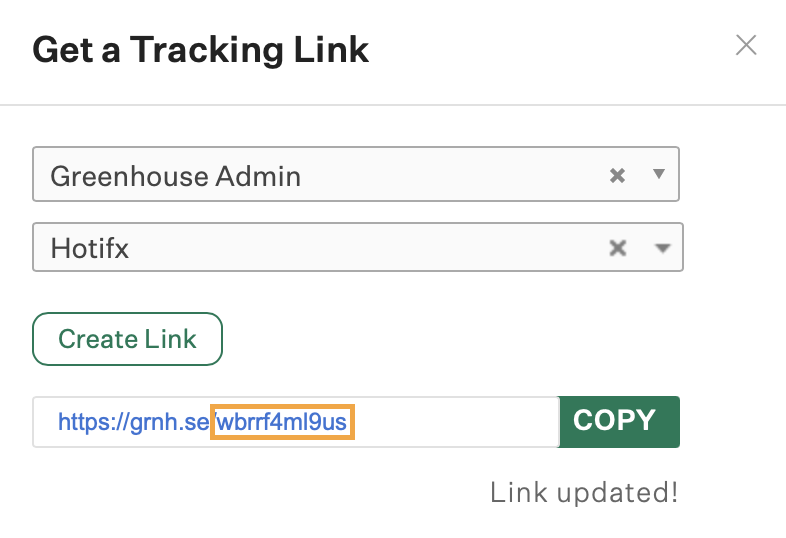
In Greenhouse Recruiting: Configure > Job Boards > click the ellipsis next to your job board > Tracking Link. Enter:
- Who gets credit: Any Greenhouse user
- Source: Hotfix
Create the link and copy the token (the value after / in the generated URL).
Connect on Hotfix
Sign in to your Hotfix dashboard at hotfix.jobs/dashboard.
The connect form has a company picker and three credential fields:
- Find your company. Hotfix may already have a profile from a previous public job board ingest. Search the picker; if your company shows up, pick it. If not, type a new company name to create a fresh profile.
- Enter your company website. Drives your logo and the company profile.
- Enter your Job Board Token, API key, and tracking token from previous steps.
- As you type the token and key, Hotfix validates them against Greenhouse in real time. You should see “Credentials look good” within about a second.
- Click Connect. The integration is installed immediately. There is no approval queue.
Use the Hotfix integration with Greenhouse Recruiting
Once the integration is live, Hotfix manages the day-to-day sync automatically. Sign in to your dashboard at hotfix.jobs/dashboard to manage everything in one place.
Job sync
Your first sync runs immediately on connect (about 30 seconds end-to-end). After that, Hotfix re-fetches your Greenhouse job board twice a day. New jobs you post appear on Hotfix on the next sync. Closed jobs are removed on the next sync.
Hotfix currently ingests US-based tech roles only. Roles posted outside the US, and non-tech roles such as clinical, retail, or frontline service jobs, stay in your Greenhouse account but don’t appear on Hotfix.
Hotfix uses AI to extract structured details from each posting (title, location, skills, years of experience, salary) and to classify whether it’s a tech role. If you spot a role that was filtered when it shouldn’t have been, or any other concern with how your jobs are being processed, contact us.
Each listing links to your company profile and appears in the relevant Hotfix searches, filters, and job alerts.
Candidate applications
When a candidate applies from Hotfix:
- Hotfix renders the Greenhouse application form inline, including custom questions, file uploads, and EEOC fields you have configured.
- The candidate completes the form on Hotfix without leaving the site.
- Hotfix submits the application to Greenhouse, attributed to the tracking link you created.
- The candidate appears in Greenhouse Recruiting under the corresponding job with Hotfix listed as the source.
Manage the integration
From the Integrations section of your dashboard, the Greenhouse card supports:
- Manage to rotate the API key, change the tracking token, or update the job board token. Leave the API key empty to keep the existing one.
- Disconnect to turn off the integration. Hotfix stops syncing new jobs and falls back to redirecting candidates to your Greenhouse-hosted application page.
Additional resources
For questions not covered here, email integrations@hotfix.jobs.
Edit your company profile
The Company section of your dashboard lets you correct anything Hotfix’s enrichment got wrong, upload your logo, and edit your headline, description, industry, size, funding stage, headquarters, LinkedIn URL, work style, tech stack, and benefits. See the company profile guide for the full field list and how the profile is populated.
Manage your team
The Team section lists the approved admins and pending invites for your company. Any admin can invite a teammate by email; the invite is single-use, email-bound, and expires in 72 hours. Resending an invite to the same email auto-revokes the prior one. Revoking an invite from the list cancels it. There is no role hierarchy today: every admin can manage the integration, the company profile, promotions, and the team.
Promote your roles
From the Promote section, you can boost specific jobs to the top of relevant Hotfix search results and category pages. Connecting your ATS doesn’t affect organic ranking; promotion is a separate paid placement on top of the jobs your integration is already syncing. Pricing and details are on the Promote page.